
When you visit a website, Chrome saves two kinds of data on your device: cookies and cache. Cookies are tiny notes that help sites remember you, like your login or what’s in your cart. Cache is a bundle of pictures and files that make pages load faster the next time. Most days, this is useful. Sometimes, though, old data gets in the way and causes glitches; pages look odd, buttons don’t work, or you can’t log in.
This guide shows how to clear cache and cookies on Chrome step by step. I’ll cover computer, Android, and how to clear cache and cookies on iPhone using Chrome. The goal is simple: make your browser feel fresh again. When you clear cache and cookies Chrome, sites often behave better. You may need to sign in again afterward, but that’s a small trade for a smoother experience.
What are Cookies & Cache?
Cookies are small files that remember things:
- That you’re logged in
- Your language or dark mode
- What’s in your cart
They help a site greet you like a returning friend.
Cache is a stash of images and files Chrome saves from pages you visit. By reusing those files, Chrome loads pages faster on your next visit.
So why clear them? Over time, those saved bits can go stale. A site updates its design, but your browser keeps using old files. The result: broken layouts, buttons that don’t respond, or strange errors. A quick clean removes the old stuff so Chrome can grab the latest version.
When Should I Clear Them?
You don’t need to clear cookies and cache every day. Watch for signs:
- Pages load halfway or look wrong
- Correct passwords still won’t log you in
- A site shows old information and won’t refresh
- Random “something went wrong” errors
- Chrome feels slow without a clear reason
Privacy counts too. Clearing cookies reduces tracking, especially from third parties that follow you across sites. If you’re on a shared computer, clearing before you leave is a smart move.
Big site update, and now it’s buggy on your screen? That’s often a cache problem. Clearing cache usually fixes it.
Even if things seem fine, a quick clean every month or two keeps Chrome tidy. I’ll walk you through how to clear cache and cookies on Chrome, and later, we’ll cover how to clear cache and cookies on iPhone with the Chrome app.
What Happens When I Clear Them?
Upsides
- Fixes many glitches and loading problems
- Frees space and can speed things up
- Reduces cross-site tracking
Trade-offs
- You’ll be signed out of most sites and may need to do 2FA again
- Site preferences (like language, theme, autoplay) may reset
- Some shopping carts or “remember me” settings can disappear
If this looks good, I’ll move on to the step-by-step: computer, Android, and iPhone.
How to Clear Cache and Cookies on Chrome (Computer)
Let’s start on a laptop or desktop. This covers Windows, Mac, and Linux.
Quick shortcut
- Open Chrome Browser
- Press Ctrl + Shift + Delete on Windows/Linux, or Command + Shift + Delete on Mac.
- A box called Clear browsing data opens.
- Time range: choose Last hour, Last 24 hours, 7 Days or All time.
- Check Cookies and other site data.
- Check Cached images and files.
- Click Delete data.
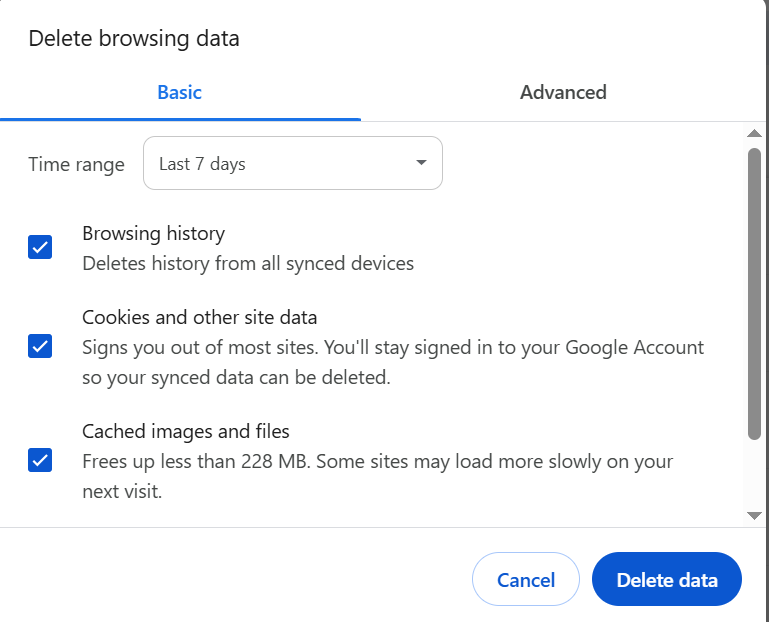
That’s the fastest way to clear the cache and cookies Chrome uses to store site info.
Clear for one site only (less disruptive)
Sometimes just one site is acting up. Wiping everything is overkill. Do a per-site clean:
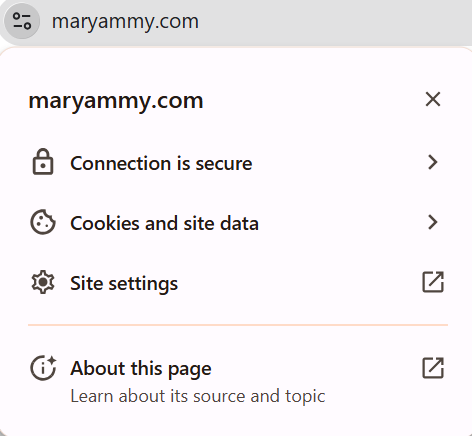
Option A: from the padlock icon
- Go to the problem site.
- Click the lock (or info) icon left of the address bar.
- Choose Cookies and site data or Site settings.
- Click Clear data or Reset permissions.
Option B: from site data settings
- Type chrome://settings/siteData in the address bar and press Enter.
- Use the search box to find the site.
- Click the trash icon next to the site or open it and choose Clear data.
- Per-site clearing keeps you signed in on other sites, which saves time.
What to select in the checkbox list
- Cookies and other site data: clears logins, site preferences, and tracking cookies.
- Cached images and files: removes saved pictures and scripts so Chrome downloads fresh copies.
If a page layout looks broken, the cache is the likely culprit. If login problems won’t go away, cookies are the key to reset.
Smart Way To Test
- After you clear, reload the site with a hard refresh to pull clean files:
- Windows/Linux: Ctrl + F5
- Mac: Command + Shift + R
- If the site still misbehaves, try the deeper clean (All time) or the per-site method again.
Extra settings that help long term
While you’re in Privacy and security, consider a couple of tweaks:
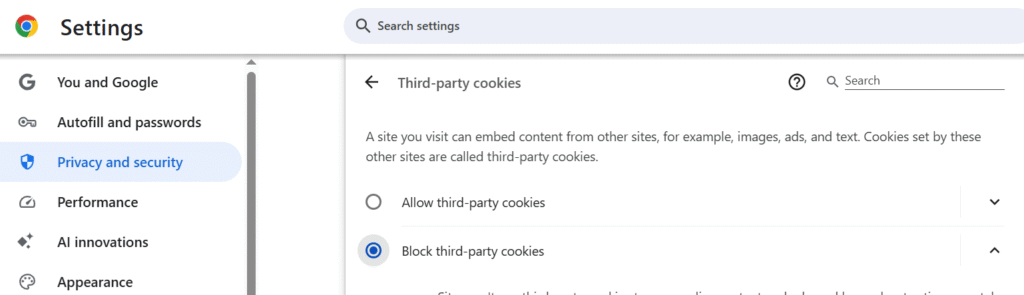
- Block Third-Party Cookies
Go to Third-party Cookies in Privacy and secuirty and set Block third-party cookies. This cuts most cross-site tracking without breaking normal logins. You can allow exceptions for trusted sites.
- Keep Important Sites Signed In
In Cookies and other site data, find Sites that can always use cookies. Add your email, banking, and work tools. This keeps them stable even if you clear other data later.
- Auto-Clear On Close (Optional)
You can turn on Clear cookies and site data when you close all windows. Use this if you share a computer or want a very private setup. Add exceptions so everyday sites still remember you.
Quick Recap For Computer
- Use the shortcut (Ctrl/Command + Shift + Delete) in a Chrome browser for a fast clean.
- Choose a smaller time range first, then go bigger if needed.
- Prefer per-site clearing when only one site is broken.
- Blocking third-party cookies reduces tracking without constant cleaning.
Next up, we’ll handle phones: Android and how to clear cache and cookies on iPhone in the Chrome app, so you can fix issues on the go too.
Clear Cache and Cookies Chrome on Android
On your phone, the steps are short. This works in the Chrome app.
- Open Chrome.
- Tap the three dots (top right).
- Tap History.
- Tap Clear browsing data.
- At the top, choose a Time range. Try the Last 24 hours first. If problems stick, pick All time.
- Check Cookies, site data, and Cached images and files.
- Tap Clear data, then Clear.
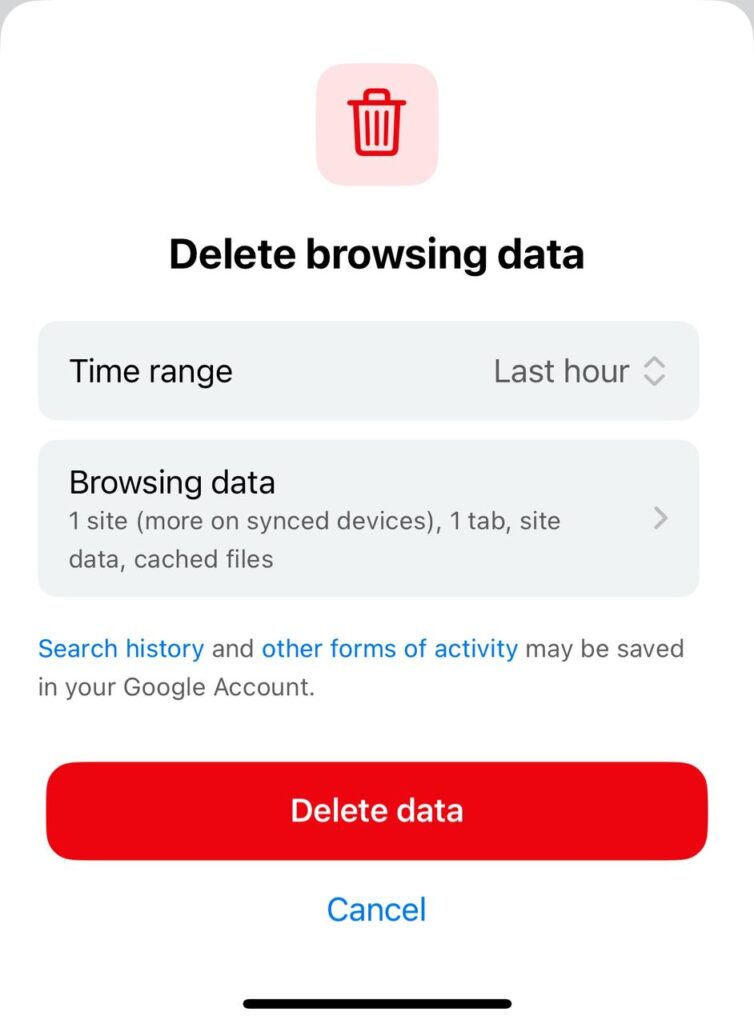
How to Clear Cache and Cookies on iPhone (Chrome)
Yes, you can do this from the Chrome app on your iOS devices.
- Open Chrome
- Tap the three dots (bottom right).
- Tap History
- Tap Delete Browsing Data
- Select Cookies, Site Data, and Cached Images and Files.
- Choose a Time Range. Start small; move to All Time if needed.
- Tap Delete Data, then confirm
Wrap Up
You now know how to clear cache and cookies on Chrome on computer, Android, and how to clear cache and cookies on iPhone. Start small with a short time range or a per-site clean. If the problem sticks, go with All time. Afterward, sign in again, and you’re good.